
How to Retrieve a CSR from cPanel
Overview: How to Retrieve a CSR from cPanel
This guide explains How to Retrieve a CSR from cPanel step‑by‑step and why it matters for security, uptime, and performance. It’s written for small and medium businesses that rely on Blackhawk MSP for proactive, managed IT support in the Bay Area and beyond.
- ✅ Clear, actionable steps
- ✅ Best‑practice notes from our MSP engineers
- ✅ Links to related services and help
Tip: If you’re short on time, contact us — we’ll handle this for you and verify everything is working.
Have you generated a Certificate Signing Request (CSR) from cPanel but lost it? Then, you can retrieve it. Follow this tutorial only if you have previously generated a CSR from cPanel.
1. Log in to your cPanel account.
2. In the Security section, click on SSL/TLS. 
3. Under the Certificate Signing Request, click on Generate, View or Delete CSR link.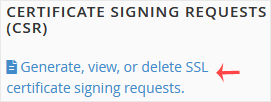
4. Under Certificate Signing Requests on Server, you can see previously generated CSR.
5. Click on Edit, which is located under the Action option.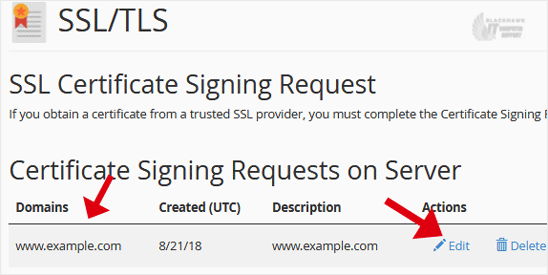
6. Copy the CSR code, located under the Encoded CSR. Please, copy it from/to:
-----BEGIN CERTIFICATE REQUEST-----
to
-----END CERTIFICATE REQUEST-----
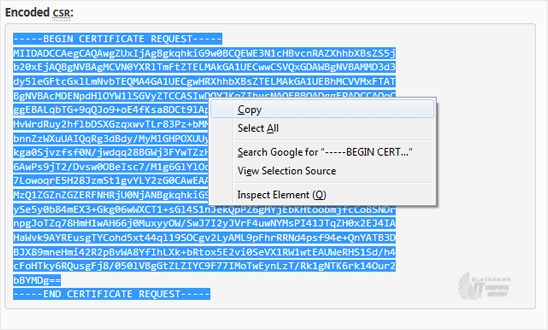
You have retrieved your Certificate Signing Request (CSR) from cPanel. You can now use it to request or reissue an SSL certificate for your domain.
Video tutorial temporarily unavailable while we refresh links. If you need more help, please call us at 1-925-218-4000.
Need help? Blackhawk MSP can do this for you, verify success, and document the change. Call 1‑925‑218‑4000 or open a ticket.