Speed Up Your Windows PC with These Easy Fixes

Is your Windows PC running slower than usual? Don't worry; you're not alone. Many users experience a dip in their computer's performance over time, often due to cluttered files or resource-hogging applications. Fortunately, there are several straightforward measures you can take to revitalize your PC's speed. In this article, we'll explore some effective fixes that you can implement today to boost your computer's performance, making it feel like new again.
Identify Resource-Hogging Applications
One of the primary reasons a Windows PC may slow down is the presence of resource-hogging applications. These include programs running in the background that consume a significant amount of CPU, memory, or disk usage without you noticing. To identify these culprits, you can use the Task Manager. Simply press `Ctrl + Shift + Esc`, which opens the Task Manager, and navigate to the "Processes" tab. Here, you'll see a list of running applications and the resources they are consuming. Pay attention to any applications that have unusually high resource usage, and consider closing or uninstalling them if they're not essential.
By managing these applications, you can free up valuable system resources, helping your PC run more efficiently. Keep in mind that some programs might be necessary for your system to function correctly, so be sure to research any application before deciding to disable or remove it. Regularly checking the resource usage can prevent any single application from impacting your PC's performance.
Right click anywhere on your taskbar where it is free and click on Task Manager. Look for any names that shouldn't be running. right click and end task. (next reboot they will come back.)
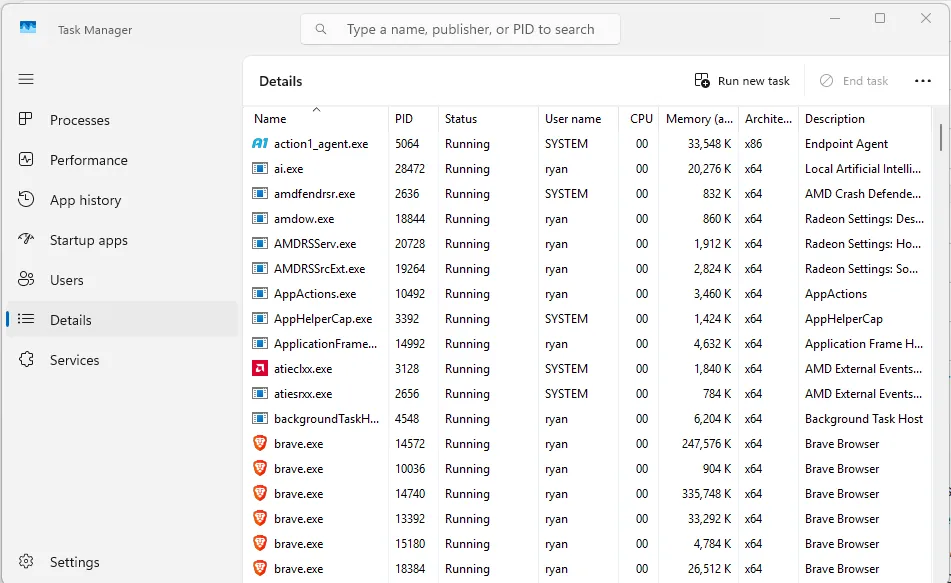
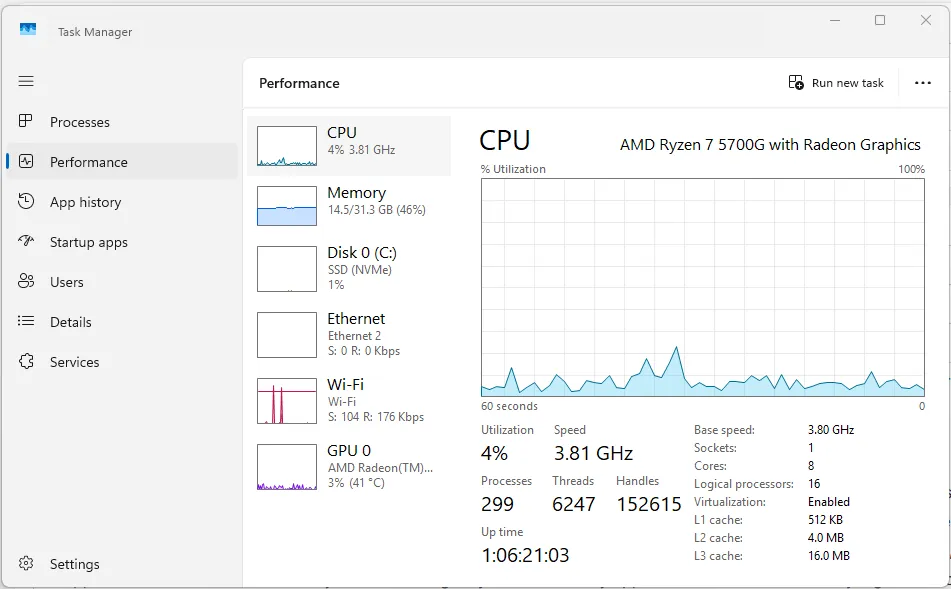
You can look your computers performance, If anything is high, call 1-925-218-4000 for support.
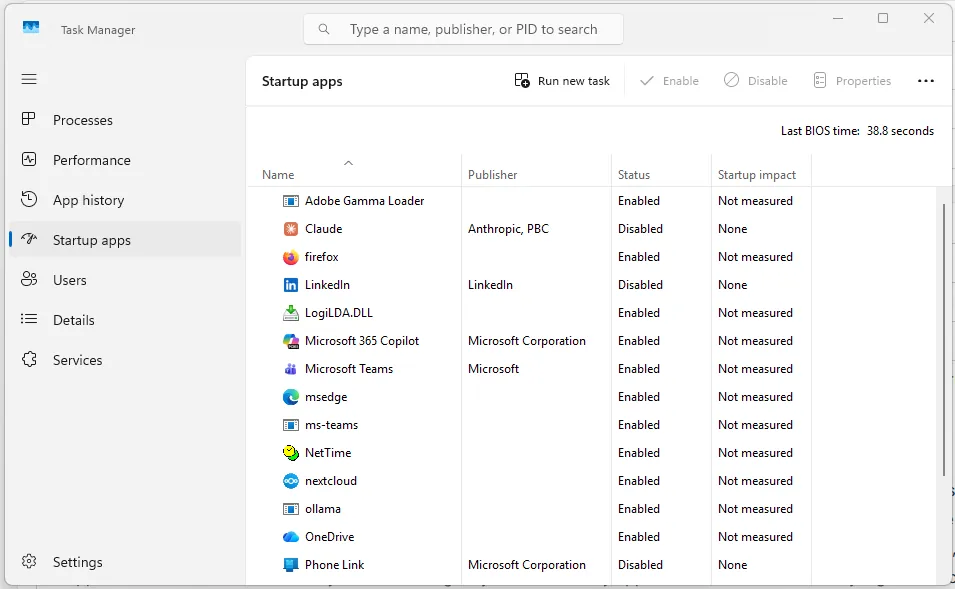
Lastly, you can disable applications you don't need to run. Disable them and then reboot.
Clean Up Temporary Files and Folders
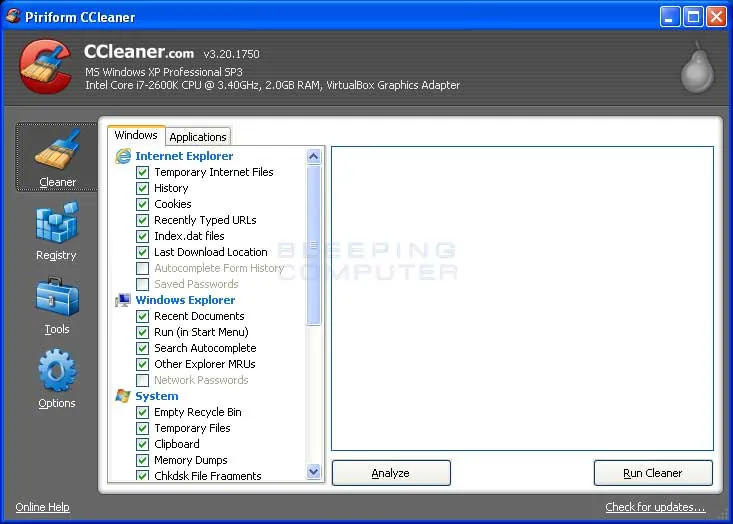
Temporary files are another common culprit in slowing down your PC. These files are created by Windows and applications to store temporary data but are often left behind, accumulating over time and taking up valuable disk space. To clean up these files, use the built-in Disk Cleanup tool. You can access it by typing "Disk Cleanup" in the search bar and selecting the drive you wish to clean. The tool will scan your system for unnecessary files, such as temporary files, system caches, and old installation files.
Deleting these files can free up space and speed up your PC by reducing the clutter that your system has to sift through. For a more thorough cleanup, consider using third-party cleanup tools that can identify and remove even more types of unnecessary files left lingering in your system.
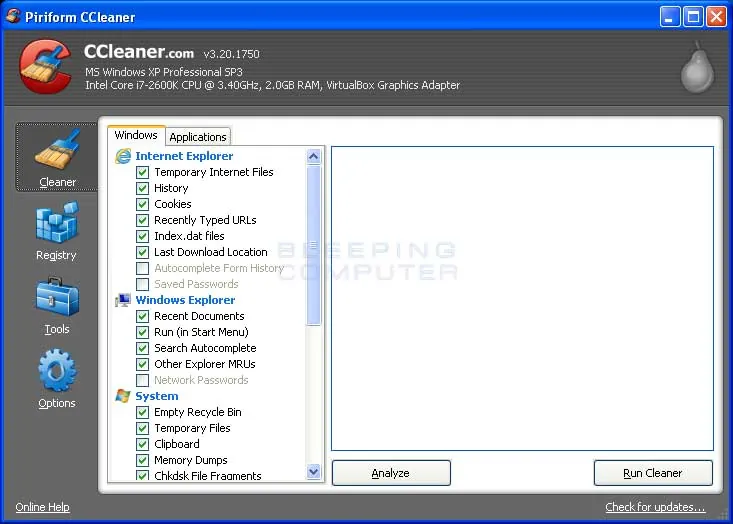
CCleaner is a great utility to clean up your computer. You can grab it free here.
Adjust Visual Effects for Performance
Windows offers a range of visual effects that enhance the appearance of your user interface, such as transparency and animations. While these effects make your computer look more appealing, they can also slow down its performance, especially on older systems.
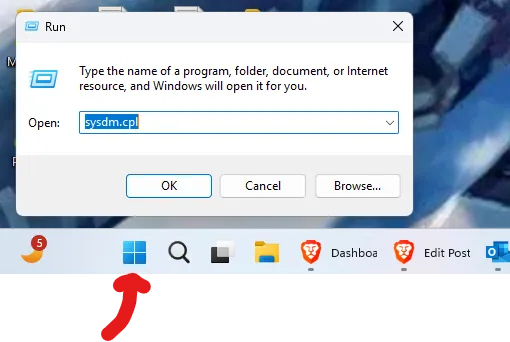
To adjust these settings for better performance, right-click on the windows icon in the lower right, choose run, type in sysdm.cpl and hit enter.
Properties," then go to "Advanced system settings." Under the "Performance" section, click on "Settings."
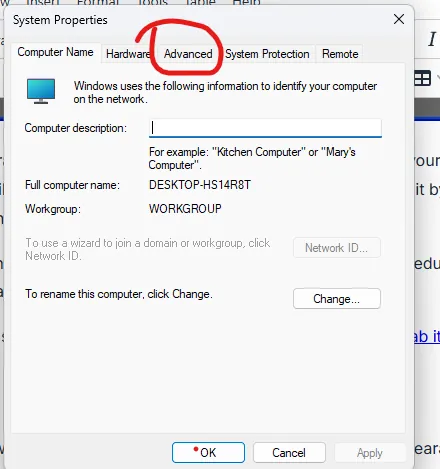
Click on Performance, settings
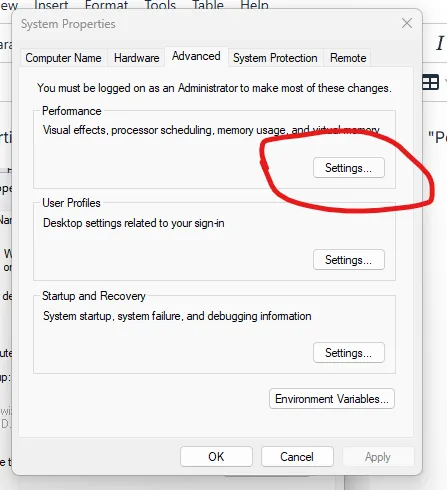
Here, you can adjust for best performance by selecting the "Adjust for best performance" option, which will disable many of the visual effects. Alternatively, you can manually choose which effects to disable, retaining only those that are most important to you. This adjustment can lead to a noticeable improvement in your PC's speed.
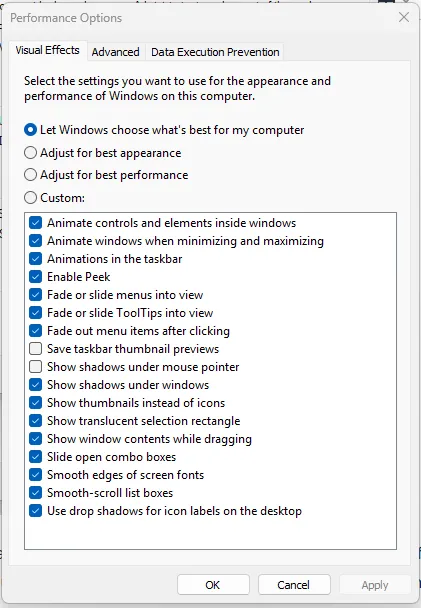
Note: You can click on advanced and adjust your virtual memory, but only do that if you an advanced user.
Uninstall Unnecessary Software Properly
Over time, it's easy to accumulate software that we no longer need or use, which can take up valuable storage space and slow down your PC. To uninstall unnecessary software, go to "Settings," then select "Apps," and navigate to "Apps & Features." Here you can browse through the list of installed programs and remove any that are no longer required.
Uninstalling unused programs not only frees up disk space but can also reduce the load on your system's resources, as these programs often include background processes that run even when you're not actively using them. Regularly reviewing and cleaning out your unused software is a great habit to maintain a speedy and efficient machine.
By taking these simple steps, you can significantly enhance the performance of your Windows PC. Identifying resource-hogging applications, cleaning up temporary files, adjusting visual effects, managing startup programs, and uninstalling unnecessary software are all effective measures that contribute to a swifter, more efficient computer. Remember, maintaining good habits and regularly checking your PC's health can prevent sluggish performance in the future, keeping your system operating smoothly and efficiently.
Download Revo Uninstaller to really uninstall programs. The windows uninstallers leaves a lot of garbage on your computer and registry. You can download Revo Uninstaller here.
Get Support
As always, if you need support with your computer, give Blackhawk MSP a call at 1-925-218-4000
Frequently Asked Questions
What can I do to improve my PC's performance?
How can I increase my PC's startup speed?
Is upgrading hardware necessary to speed up my PC?
How often should I clean my registry to speed up my system?
Does keeping my Windows OS updated help improve performance?