
How to Manually Install/Reinstall an OS Using Virtualizor for a Customized Installation
Overview: How to Manually Install/Reinstall an OS Using Virtualizor for a Customized Installation
This guide explains How to Manually Install/Reinstall an OS Using Virtualizor for a Customized Installation step‑by‑step and why it matters for security, uptime, and performance. It’s written for small and medium businesses that rely on Blackhawk MSP for proactive, managed IT support in the Bay Area and beyond.
- ✅ Clear, actionable steps
- ✅ Best‑practice notes from our MSP engineers
- ✅ Links to related services and help
Tip: If you’re short on time, contact us — we’ll handle this for you and verify everything is working.
The Virtualizor's automatic reinstall option does not allow you to modify or create a custom partition. However, you can create such a partition through a manual installation/reinstallation of an OS. You can follow these instructions to install/reinstall an OS manually.
1. Log in to your Virtualizor Control Panel.
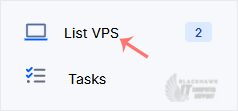
2. From the left side panel, click on List VPS.
3. Hover your mouse on the appropriate VPS, and that line will be highlighted. Then click on the Wrench icon in the highlighted line.

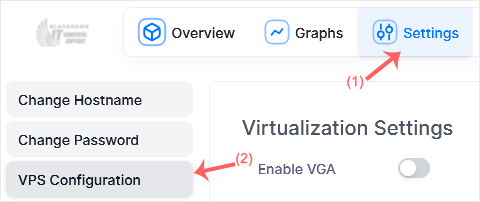
4. Click on Settings and select VPS Configuration.
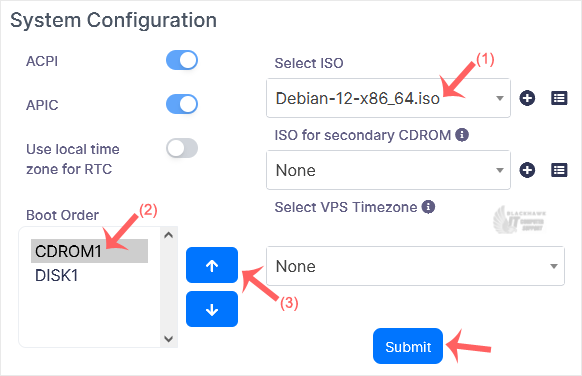
5. Under VPS Configuration, select ISO, set the boot order to CDROM first using the up arrow, and click Submit.
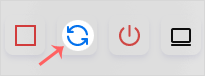
6. Reboot your VPS by clicking on the Reboot icon.
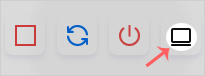
7. Now, quickly click on VNC without waiting.
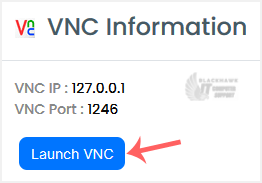
8. The new Popup box will open. Click on Launch VNC.
Most operating systems ask you to press any button to start an OS installation while booting. When prompted, press any key on your keyboard, and the OS installation/reinstallation will begin. It may also show you an option such as Install OS or Test this media. For an OS installation/reinstallation, select Install OS and press Enter.
Once the installation starts, it will ask you to create a partition, set a password, etc.
After the installation is complete, don't forget to set the boot order to CDROM and reboot the VPS. Otherwise, the VPS will start in installation mode on the next boot instead of the normal mode.
Note: If VNC got disconnected, then click on Connect to reconnect it.
Video tutorial temporarily unavailable while we refresh links. If you need more help, please call us at 1-925-218-4000.
Need help? Blackhawk MSP can do this for you, verify success, and document the change. Call 1‑925‑218‑4000 or open a ticket.