
How to Create a Database Username in cPanel
Overview: How to Create a Database Username in cPanel
This guide explains How to Create a Database Username in cPanel step‑by‑step and why it matters for security, uptime, and performance. It’s written for small and medium businesses that rely on Blackhawk MSP for proactive, managed IT support in the Bay Area and beyond.
- ✅ Clear, actionable steps
- ✅ Best‑practice notes from our MSP engineers
- ✅ Links to related services and help
Tip: If you’re short on time, contact us — we’ll handle this for you and verify everything is working.
A database username is important for connecting your website or application to the database. You can create a database username by following the steps below.
1. Log in to your cPanel account.
2. In the Databases section, click on Manage My Databases.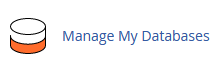
3. Under Add New User, in the Username field, enter the new username you want to create.
4. Enter your new password or use a password generator.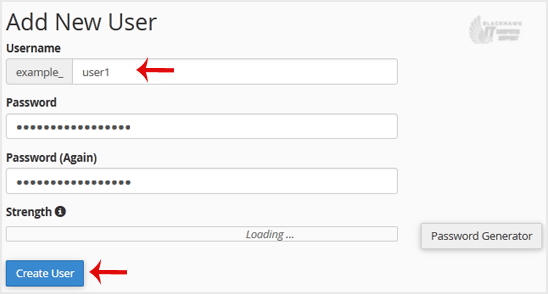
5. Click on Create a User.
Tip: Write down the database username and password on a notepad so you can easily recall them while installing a script manually.
So, by following this tutorial, you have learned how to create a database username in cPanel step by step.
Video tutorial temporarily unavailable while we refresh links. If you need more help, please call us at 1-925-218-4000.
Need help? Blackhawk MSP can do this for you, verify success, and document the change. Call 1‑925‑218‑4000 or open a ticket.