
How to Change the Email Sending Limit in DirectAdmin
Overview: How to Change the Email Sending Limit in DirectAdmin
This guide explains How to Change the Email Sending Limit in DirectAdmin step‑by‑step and why it matters for security, uptime, and performance. It’s written for small and medium businesses that rely on Blackhawk MSP for proactive, managed IT support in the Bay Area and beyond.
- ✅ Clear, actionable steps
- ✅ Best‑practice notes from our MSP engineers
- ✅ Links to related services and help
Tip: If you’re short on time, contact us — we’ll handle this for you and verify everything is working.
If you have set the email sending limit while creating your email account, you can easily modify it. However, you cannot increase it higher than the limit set by your server administrator.
1. Log in to your DirectAdmin Account.
2. In the E-mail Manager section, click on E-mail Accounts. Alternatively, type E-mail Accounts in the search bar, and the option will appear. Click on it.
3. In the Email Accounts list, you will see the email address with a three-dot icon on the right side.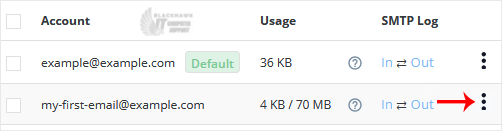
4. Click on the three-dot icon and choose Change Limits.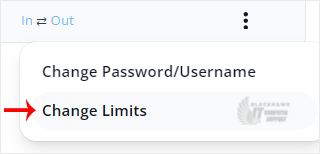
5. Modify the Send Limit to 200 or to as much as required. If you have the unlimited option available, choose it instead.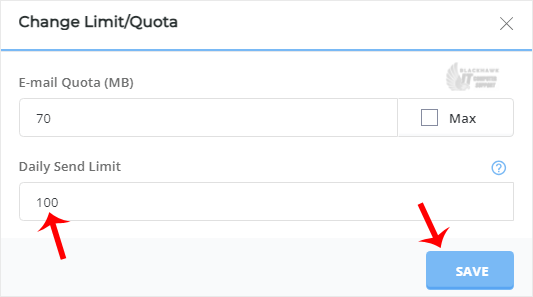
6. Click on Save.
Your email limit will be modified.
Video tutorial temporarily unavailable while we refresh links. If you need more help, please call us at 1-925-218-4000.
Need help? Blackhawk MSP can do this for you, verify success, and document the change. Call 1‑925‑218‑4000 or open a ticket.